AiPPT Plugin is a third-party add-in from AiPPT that runs inside Office or WPS. You can enter a topic or upload a document to generate a full presentation in one pass, then draw on five libraries (templates, single pages, images, icons, illustrations) and one-click design tools, with some design features working offline.
AiPPT Plugin is an AI presentation maker that lives inside Microsoft Office and WPS rather than in a separate browser tab. Its purpose is narrow and practical: take the three slowest jobs in deck building — hunting for a template, arranging the structure, and fixing the formatting — and turn them into a few clicks in a sidebar. Powered by large language models such as DeepSeek, it generates a complete presentation from a topic prompt or an uploaded document, while five asset libraries (templates, single pages, images, icons and illustrations) plus a set of smart design tools sit in the same panel. Writing, sourcing and polishing all happen in the open file, so you stop shuttling between a web app and PowerPoint.
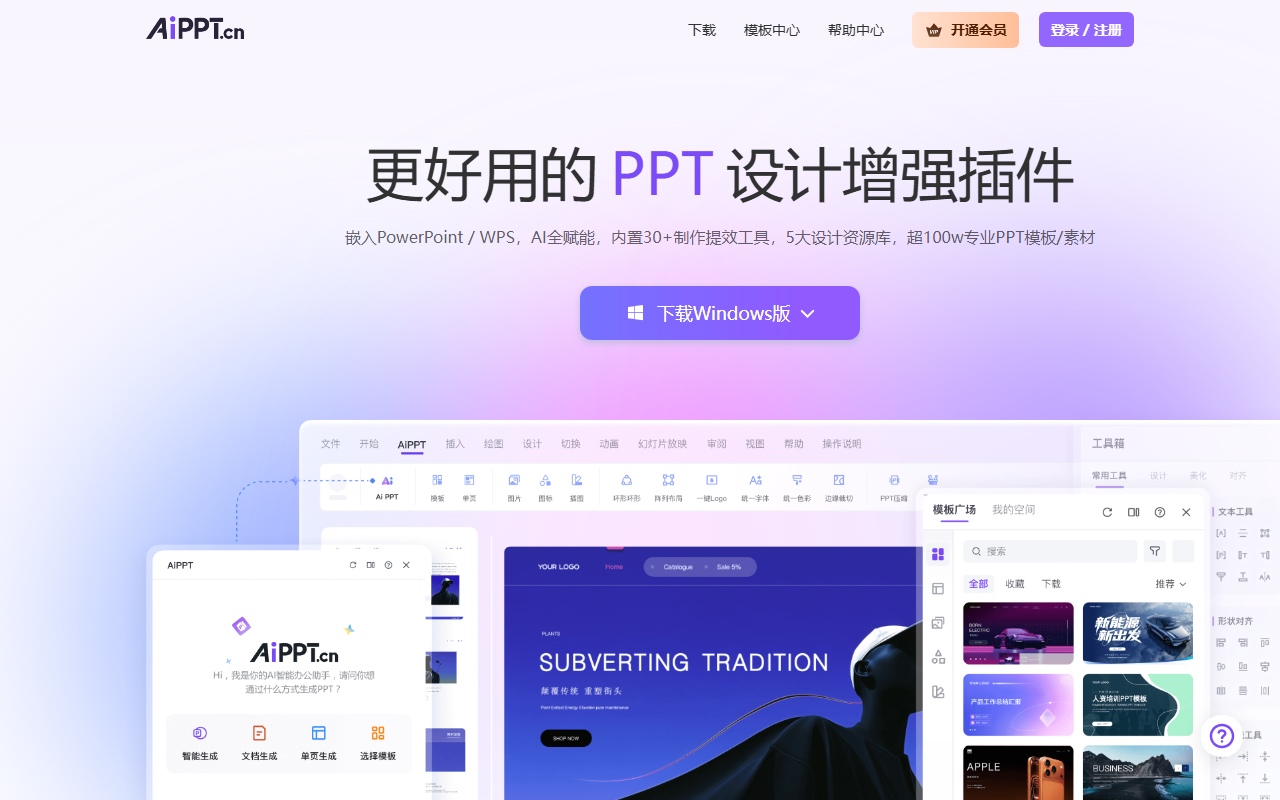
What AiPPT Plugin is
It is a third-party add-in released by AiPPT that runs inside Microsoft Office or WPS instead of acting as a standalone online editor. That form factor defines how you work with it: you click an icon in the ribbon, the sidebar becomes your workspace, and generation, asset sourcing and beautification all apply to the deck you already have open. The product combines 27 in-house productivity tools with more than 60 native feature integrations, and the design goal is simple — fewer context switches.
Because the add-in writes into the presentation itself, the output is an ordinary editable deck. Shapes, text boxes and slides behave the way they always do in Office or WPS, which matters when a file has to pass through a corporate template, a colleague's review or a print workflow afterwards.
Main capabilities
AI generation from a topic or a document. With a large model such as DeepSeek behind it, you can type a subject and get a structured deck, or upload a Word file, a PDF or an outline and let the tool build the slides from that source. The upload route suits situations where the material already exists and only needs to be reorganised into a presentation, skipping the step of rewriting everything as a manual outline.
Five asset libraries. Templates, single pages, images, icons and illustrations are built in as five professional collections. Assets are updated continuously and cleared for commercial use, and any item can be inserted into the current slide with a click.
Smart design tools. More than 30 one-click beautification tools unify fonts, colour schemes and theme styling across an entire deck, and they support inserting a logo or a watermark in bulk instead of page by page.
Offline capability. An offline design toolkit is included. Apart from the libraries and the AI features, which require a connection, basic editing and the use of already-downloaded assets work without a network.
Deep native integration. The 27 in-house tools are wired into more than 60 native functions, so layout operations such as circular arrangement and smart alignment no longer require switching to another program.
How to use it
- Install and launch. Download the installer, complete the installation, then click the AiPPT icon in the Office or WPS ribbon to open the add-in.
- Sign in. On first use, register or log in with an AiPPT account to unlock the full feature set and online library access.
- Generate a first draft. In the sidebar choose the smart generation entry, then enter a topic or upload a Word, PDF or outline file and let the AI produce the structure and content.
- Apply assets. Open the template gallery and pick from the five libraries — a full template, a single page, an image, an icon or an illustration — to insert into the current slide.
- Beautify and edit offline. Use the one-click theme switch to align fonts, colours and styling, insert logos or watermarks in bulk, and if you need to work offline, download the assets you want beforehand.
Where it fits
- Business reporting. Enter a reporting topic or upload a business document to draft a work summary, a quarterly review or a project proposal, then adjust it to the corporate template.
- Teaching and training. Teachers and trainers use the template and single-page libraries to build illustrated courseware quickly, and unify the visual style of a whole set in one action.
- Academic defence. Upload a thesis outline or a research proposal, let the AI sort out the logical framework first, and then lay out the slides on top of that structure.
- Product pitches. Combine commercial templates and the icon library with the smart layout tools to prepare material for investors or customers.
Limitations and things to know
The add-in depends on a host application, so Microsoft Office or WPS must be installed first. On the system side, the Windows build supports Windows 7 SP1 and later with Office 2010 or later, or WPS; the macOS build requires macOS 12.0 or later with Office 16.89 or later. AI-generated content still needs human review, especially figures, case studies and conclusions, and template-driven phrasing can make different reports look alike. In offline mode the libraries and the AI features are unavailable, so generation always requires a connection. If the icon does not appear in the ribbon after installation, the add-in is usually simply not ticked — enable the third-party COM add-in under File > Options > Add-ins > Go in PowerPoint, or under File > Options > Trust Center in WPS. Pricing and membership benefits follow the official page.
FAQ
Which systems and Office versions are supported? The Windows build supports Windows 7 SP1 and later with Office 2010 or later, or WPS. The macOS build supports macOS 12.0 and later with Office 16.89 or later.
Can the add-in be used offline? Yes, but only partly. The asset libraries, the AI features and anything that needs a connection are unavailable; the remaining design tools work offline, and templates, single pages and icons you have already downloaded remain editable.
Does the add-in cost extra? The add-in shares an account with the other AiPPT clients, so an active AiPPT membership can be used directly without an additional charge. Specific entitlements follow the official page.
Frequently asked questions
Which systems and Office versions are supported?
The Windows build supports Windows 7 SP1 and later with Office 2010 or later, or WPS. The macOS build supports macOS 12.0 and later with Office 16.89 or later.
Can the add-in be used offline?
Yes, but only partly. The asset libraries, the AI features and anything that needs a connection are unavailable; the remaining design tools work offline, and templates, single pages and icons you have already downloaded remain editable.
Does the add-in cost extra?
The add-in shares an account with the other AiPPT clients, so an active AiPPT membership can be used directly without an additional charge. Specific entitlements follow the official page.