
D.Design AI Image Translation works on text inside images: you upload a picture, set the source and target languages, and it produces a new image with the translated copy placed in. You can keep editing the text, size and crop on the result, and mark regions to leave untranslated. It suits cross-border e-commerce, ad localisation and multilingual content.
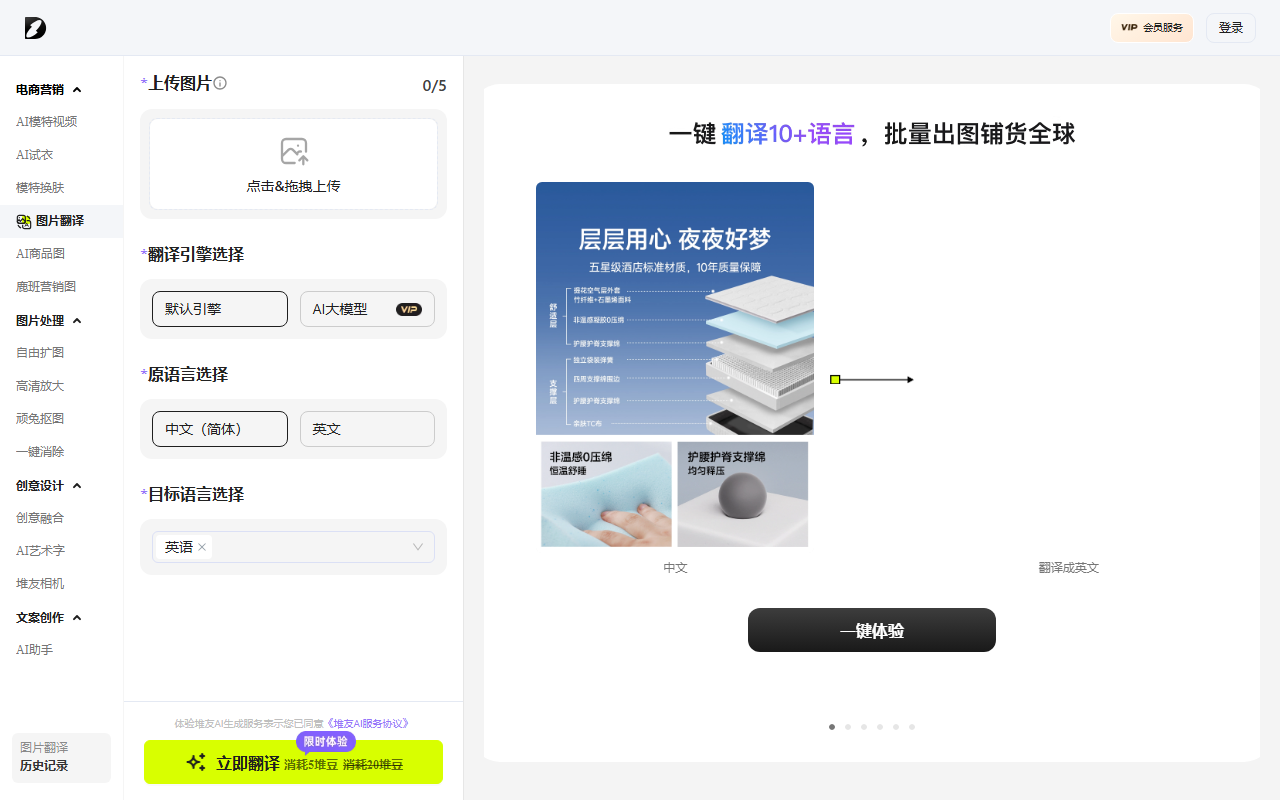
D.Design AI Image Translation: upload an image, get the translated image back
D.Design AI Image Translation is a tool that translates the text inside an image rather than the text you paste into a box. You upload a picture, pick the source and target languages, and it recognises the lettering on the artwork and renders the translation onto a new image. The stated audience is e-commerce sellers, advertising designers and multilingual content creators.
Compared with doing it by hand, the difference sits in the last step. Instead of OCR, copy, translate, paste back into the layout, the translated copy lands on a fresh image where you can keep editing it: add text, resize, crop. The time saved is usually not in the translation itself but in putting the translated words back into the original layout.
What it does
- Automatic text detection: It finds the text in an image and pulls it out as the input for translation. How cleanly that happens decides how good everything downstream looks.
- Multiple target languages: The source material lists Traditional Chinese, English, Korean, Portuguese, Spanish, French, Japanese and Russian among the options. You specify the source language yourself.
- Choice of translation engine: You can switch between a default engine and an AI model. The default engine is the steadier, faster option; a large model usually reads context and tone better, which helps with marketing copy.
- On-image editing: After the translation is generated you can add text, change sizes and crop directly on the image, so the layout can be fixed without going back to a design tool.
- Exclude regions: You can mark parts of the image that should not be translated and leave them as they are. Logos, brand names and certification marks usually survive this way.
- One-click generation: Once the languages and engine are set, the translated image is produced in one pass instead of a copy-paste round trip.
How to use it
- Go to d.design/toolbox/translate and sign in. The source material notes that an account is needed first.
- Upload an image: use the upload button to pick a file, or drag the image into the designated area.
- Choose the engine: default or AI model, depending on what is in the picture. Dense terminology and spec sheets lean towards the default; slogans and marketing copy lean towards the model.
- Set the languages: declare the source language and the target language. Selecting the source manually is safer, because auto-detection tends to struggle on images that mix languages.
- Start the translation and wait for the text to be recognised and rendered.
- Proofread and edit: check whether the type has been squeezed, whether lines break mid-word, and whether the translation overflows the original text block. Adjust font, size and colour as needed.
- Save or download the translated image once it looks right.
Where it fits
- Cross-border e-commerce: turn the Chinese captions on product and detail images into the language of the target market.
- Advertising and marketing: run the same ad visual in several countries by producing one version per language instead of re-laying out each time.
- Travel and hospitality: brochures, maps and signage in multiple languages for international visitors.
- Education and research: diagrams and figures from textbooks and papers translated for students and researchers from other language backgrounds.
- Social media and content creation: translate image content and post it to accounts in different regions, so one asset covers more ground.
Limitations to keep in mind
- The source material gives no pricing, free quota or commercial licensing terms. Whether it is free, how many images you get and whether the output can be used commercially should be checked against the current information on the official site.
- Recognition quality depends heavily on image quality. Low resolution, strong perspective, stylised lettering and text over busy backgrounds all cause mistakes in detection and re-rendering; such images are better replaced with a cleaner original.
- The supported languages are the ones the source material lists. Whether other languages work, and how well, is not stated.
- Excluding regions is a manual selection. The more fragmented the elements on the image, the longer the selection takes, and no automatic logo or brand detection is mentioned.
- The output still needs a human proofread. Personal names, brand names, legal terminology, units and currency symbols are the usual failure points for machine translation.
- The material does not state size or format limits per image, whether batch processing is supported, or what resolution the export has. For a large batch, test a small sample before committing to a workflow.
- What you get is a raster image with the translation painted into the pixels. Changing the copy later means regenerating; there is no editable source file.
Frequently asked questions
How is this different from a normal translation app?
A normal translation app works on text you paste in and gives you text back, which you then have to place into the image yourself. This one goes image in, image out, with detection, translation and re-rendering handled in one pass, plus editing on the result.
Which languages are supported?
The source material lists Traditional Chinese, English, Korean, Portuguese, Spanish, French, Japanese and Russian among the target languages. Check the picker inside the tool, since that list may not be exhaustive.
Should I use the default engine or the AI model?
It depends on the content. Fixed terminology and regular layouts such as spec sheets are usually fine on the default engine and more predictable. Slogans, headlines and anything carrying tone benefit from a model that reads context. The material only says both exist; it offers no comparison.
Can I still edit the text afterwards?
Yes. Adding text, resizing and cropping on the image are all listed as supported, precisely so the translation can be fitted to the space it has to occupy.
Can I protect a logo or brand name from being translated?
Use the exclude-regions option to mark the areas that should stay untouched. That step is manual; no automatic brand detection is mentioned.
Is it free?
The material provides no pricing or quota information. Check the current terms on the official site before relying on it, and confirm the licence scope if the output is going into commercial work.
Frequently asked questions
How is this different from a normal translation app?
A normal translation app works on text you paste in and gives you text back, which you then have to place into the image yourself. This one goes image in, image out, with detection, translation and re-rendering handled in one pass, plus editing on the result.
Which languages are supported?
The source material lists Traditional Chinese, English, Korean, Portuguese, Spanish, French, Japanese and Russian among the target languages. Check the picker inside the tool, since that list may not be exhaustive.
Should I use the default engine or the AI model?
It depends on the content. Fixed terminology and regular layouts such as spec sheets are usually fine on the default engine and more predictable. Slogans, headlines and anything carrying tone benefit from a model that reads context. The material only says both exist; it offers no comparison.
Can I still edit the text afterwards?
Yes. Adding text, resizing and cropping on the image are all listed as supported, precisely so the translation can be fitted to the space it has to occupy.
Can I protect a logo or brand name from being translated?
Use the exclude-regions option to mark the areas that should stay untouched. That step is manual; no automatic brand detection is mentioned.
Is it free?
The material provides no pricing or quota information. Check the current terms on the official site before relying on it, and confirm the licence scope if the output is going into commercial work.