
IgenFlow Guide Recorder is an AI tool that converts ordinary web activity into written how-to guides: install the extension, perform the task once, and receive a screenshot-backed, editable guide that can be shared or exported.
IgenFlow Guide Recorder: An AI Tool That Turns Web Actions into Step-by-Step Guides
What it is
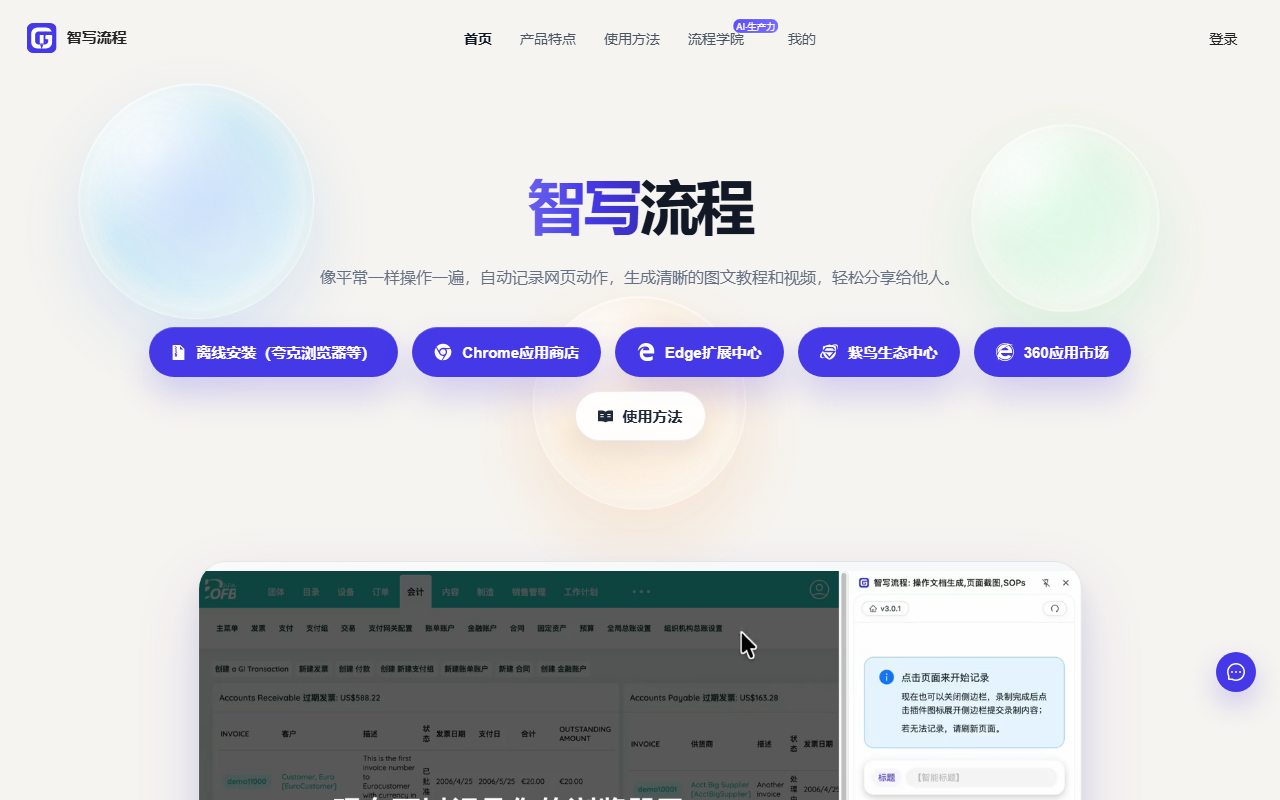
IgenFlow Guide Recorder (known in Chinese as Zhixie Liucheng) is a browser extension that converts ordinary web activity into a written, illustrated how-to guide. You install the extension, press record, and then do the task the way you normally would: clicking buttons, filling in fields, moving between pages. The tool tracks those clicks, keystrokes and page transitions, captures matching screenshots, and on stop produces a numbered guide with text descriptions for every step.
The problem it addresses is familiar: people know how to perform a task but rarely have time to document it. The usual workflow means taking screenshots by hand, then writing each explanation afterwards. Recording once replaces that first draft, so the remaining work is a short editing pass rather than documentation from scratch. It is aimed at ordinary users and teams who need operating procedures written down, not at professional technical writers.
Main features
- Automatic capture of a workflow: after recording starts, mouse clicks, keyboard input and page navigation are tracked in sequence, producing a guide with screenshots and explanatory text as you go. The vendor states this reduces manual authoring effort by roughly 80 percent.
- Editing and refinement: steps can be added, deleted or reordered, screenshots can be annotated, and the generated wording can be rewritten so the guide matches your team's tone and terminology.
- Sharing and export options: guides can be published as an online document and shared by link, or exported to PDF, Word and Markdown for an internal wiki, a ticket, or a client deliverable.
- Guided mode: once a link is shared, a colleague or customer can follow the steps directly in the browser, which suits onboarding and self-service troubleshooting.
- Straightforward installation and sign-in: install locally from a package, or in one click from the 360 Browser, Google Chrome or Microsoft Edge extension stores; sign-in uses a WeChat QR code.
How to use it
- Open the official site at https://www.igenflow.com/ and choose either the local installer or the one-click install from the 360 Browser, Chrome or Edge extension store.
- After installation, click the IgenFlow icon in the browser toolbar and sign in by scanning the QR code with WeChat.
- Navigate to the page you want to demonstrate, press start recording, and then complete the task exactly as you normally would. There is no need to slow down for the recorder.
- When the task is finished, press stop. The tool generates a first draft containing screenshots and written descriptions.
- Open the editor: remove steps that are not worth documenting, reorder the sequence, annotate the important screenshots, and rewrite the automatic descriptions into clearer sentences.
- Share the guide by link, or export it as PDF, Word or Markdown. If someone needs to perform the task themselves, send the link and point them to guided mode.
Where it fits
- Employee onboarding: record a system workflow once instead of walking each new hire through it verbally.
- Customer support: build product manuals and self-service troubleshooting tutorials that answer recurring questions.
- Content production: prepare the written steps that accompany a software review video, so the video and the article stay consistent.
- Internal knowledge sharing: turn the tacit know-how of experienced staff into standard documents before they leave the team.
- Technical support and project management: produce diagnostic procedures quickly, or lock down a single agreed way of executing a recurring process.
Limitations
- Web pages only: the recorder works inside a browser. Desktop clients, mobile apps and locally installed software interfaces are out of scope.
- The output is a draft: automatically generated sentences describe what was clicked, not why. Long flows still need merging and rewriting by a person.
- Screenshots may contain sensitive data: recordings can capture account names, customer details or internal figures. Review every image and mask anything confidential before sharing externally.
- Limited export formats: PDF, Word and Markdown are supported; other formats require conversion.
- Shared links depend on the service: for long-term archiving, keep the exported local files as well so the content survives link changes.
- An account is required: recording and saving depend on being signed in, and the documented sign-in method is a WeChat QR code, which excludes users without WeChat.
- Time savings vary: the roughly 80 percent figure comes from the vendor; the real gain depends on how many steps a process has and how much rewriting the text needs.
FAQ
Q: Can I record actions in a desktop application or on a phone?
A: No. The product is a browser extension, so only pages open in the browser can be captured. Native desktop and mobile interfaces are not recorded.
Q: Do I still have to write the explanatory text myself?
A: A description is generated automatically, but it should be reviewed. Automated text usually says what was clicked; adding the reason for each step, the caveats and the error handling is what makes a guide usable.
Q: Does the person receiving the link need the extension?
A: No. The shared guide opens in a browser, and guided mode lets the reader follow the steps. Only the person recording and editing needs the extension installed.
Q: How should I handle internal information visible in screenshots?
A: Delete or replace the affected screenshots in the editor, or mask the sensitive regions before exporting. For guides published outside the company, have an owner review the whole document first.
Frequently asked questions
Can I record actions in a desktop application or on a phone?
No. It is a browser extension, so only pages open in the browser can be captured; native desktop and mobile apps are not recorded.
Do I still have to write the explanatory text?
A description is generated automatically, but review it and add the reason for each step, caveats and error handling.
Does the recipient need to install anything?
No. The shared guide opens in a browser; only the person recording and editing needs the extension.
What about internal data in screenshots?
Remove or replace those screenshots in the editor, or mask sensitive regions before exporting.