
Kimi PPT Assistant turns a topic, a written brief or uploaded Word and PDF documents into a slide deck: it produces the outline first for confirmation, then renders slides with a chosen template. You can restructure the outline, edit text, images and charts, polish the wording, merge several documents into one outline, and finally export or share. The source material says the feature is completely free, while usage caps are not documented.
Kimi PPT Assistant: turning a topic or a document into a deck
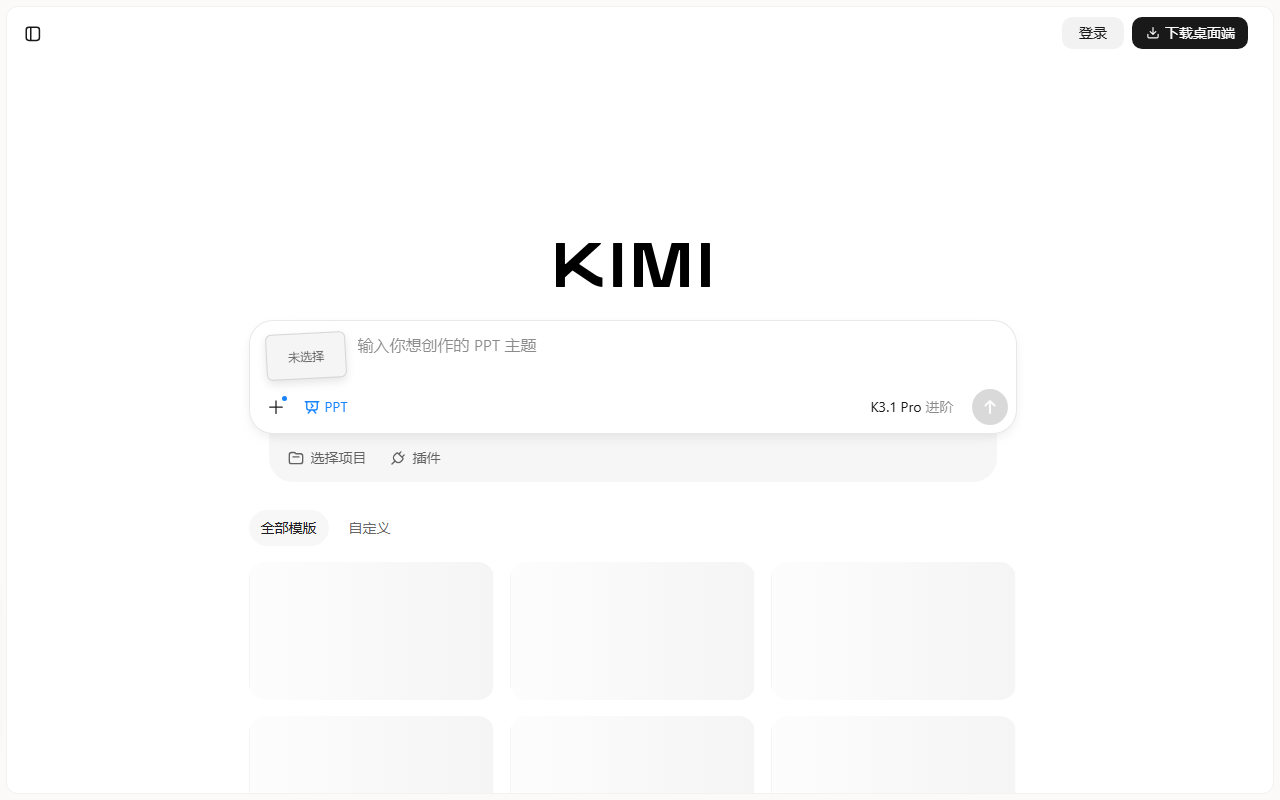
Kimi PPT Assistant is a presentation generator built by Moonshot AI inside Kimi, and it does one thing narrowly: you give it a topic, a detailed brief, or files such as Word and PDF documents, it drafts an outline and the content of each slide, then applies a template to produce the whole deck. Once generated, you can edit the outline, text, images and charts in the browser, then export to common formats or share a link. For the familiar situation of a report due tomorrow morning, its value is not replacing design work but collapsing the time spent building a structure from scratch into a few minutes.
The workflow separates structure from styling, which is the part that matters. The outline is produced first and can be confirmed before any slide is rendered, so if the logic is wrong you fix a list instead of twenty laid-out pages. Uploading existing documents as source material goes further: the assistant reads them and builds the outline from their content rather than inventing a narrative, and multiple files can be combined into a single deck.
According to the source material, the feature is entirely free, and the example prompt it gives is deliberately conversational - a games industry professional asking for a deck comparing two titles - which suggests the input does not need to be formal or structured. What the source does not state is whether there are daily quotas, queue times, paid template tiers or export watermarks, so a quick test on your own account is the only reliable way to check current limits.
Core features
One-click deck generation
Enter a topic or a detailed description, or upload Word, PDF and similar files, and Kimi generates both the outline and the slide content. Because the outline appears first and can be reviewed, a wrong structure is cheap to correct before any layout exists.
Online editing
Generated decks open in an editing interface where you can restructure the outline and insert or change text, images and charts. This suits the realistic pattern of using AI for the skeleton and doing human review on the pages that carry numbers or conclusions.
Content polishing
Kimi can optimise and polish the generated text so the language reads more consistently and the logic holds together. For people who find writing report copy harder than designing slides, this step often saves more time than the template does.
Multi-file generation
Several documents can be uploaded at once, and the assistant analyses them to produce a merged outline. That fits turning a stack of weekly reports, research notes or project documents into one presentation instead of one deck per file.
Template selection and export
After the outline is confirmed you pick a template style and the deck is rendered, then edited, downloaded in common formats or shared. The source does not list which formats or how many templates are available.
How to use it
- Open the Kimi PPT Assistant site, or install the Kimi app or desktop client, and sign in.
- Click Kimi PPT Assistant in the left navigation, or open Kimi+ and choose the PPT Assistant.
- Type the topic and requirements in the chat box, or upload the documents you want to work from.
- Review the optimised structure, then confirm and press the one-click generate button.
- Pick a template style and wait for the deck to render.
- Make final adjustments in the editor, then download or share the result.
Pricing
- The source material states the feature is completely free to use.
- No information is given on usage caps, concurrent jobs, paid template tiers or export watermarks.
- Because limits can change without notice, test with a real document on your own account before planning around it.
Who it suits
- Students assembling course reports and research presentations, where clear structure matters more than visual polish.
- Office workers producing weekly, monthly and project reports who want to cut layout time.
- Teachers preparing lesson slides quickly so more time goes into the teaching content itself.
- Founders and sales staff drafting business plans and product introductions that need structure first and refinement second.
- Event organisers building run-of-show and sponsorship decks.
Limitations and things to check
- Output quality follows input quality. A one-line topic yields a generic framework; detailed material plus explicit requirements such as audience, length and conclusion raise usability sharply.
- Content still needs human verification. The model organises language, but figures, citations and factual claims must be checked against the original material, especially for financial or compliance topics.
- The source does not disclose the exact list of export formats, maximum file size, slide count caps or number of templates, so test with a real document before relying on it.
- Templates and layouts come from the system, so corporate visual rules such as fonts, colours and logo placement usually need unifying after export.
- Images and charts are inserted by the AI; brand assets, licensed photos and charts of real data should be replaced with authorised versions.
- Free use is stated, but commercial licensing, team collaboration permissions and data retention policy are not covered; for sensitive material, confirm how the account and its data are handled first.
Frequently asked questions
Is Kimi PPT Assistant free?
The source material describes the feature as completely free. Whether daily quotas, concurrent jobs or export limits exist is not stated, so confirm by testing on your own account.
Can I generate a deck from my own documents?
Yes. Word, PDF and other formats can be uploaded as source material, and several files can be submitted at once for the assistant to analyse into a single outline. The more complete and better structured the documents, the closer the result.
Can I edit the result afterwards?
Yes. The deck opens in an online editor where you can change the outline and insert or modify text, images and charts, ask Kimi to polish the content, and then export or share.
Is it suitable for formal presentations?
It works well as a first draft and structural frame. Before external use, verify facts and figures, align template details with corporate visual rules, and replace any assets you are not licensed to use.
Frequently asked questions
Is Kimi PPT Assistant free?
The source material describes the feature as completely free. Whether daily quotas, concurrent jobs or export limits exist is not stated, so confirm by testing on your own account.
Can I generate a deck from my own documents?
Yes. Word, PDF and other formats can be uploaded as source material, and several files can be submitted at once for the assistant to analyse into a single outline. The more complete and better structured the documents, the closer the result.
Can I edit the result afterwards?
Yes. The deck opens in an online editor where you can change the outline and insert or modify text, images and charts, ask Kimi to polish the content, and then export or share.
Is it suitable for formal presentations?
It works well as a first draft and structural frame. Before external use, verify facts and figures, align template details with corporate visual rules, and replace any assets you are not licensed to use.