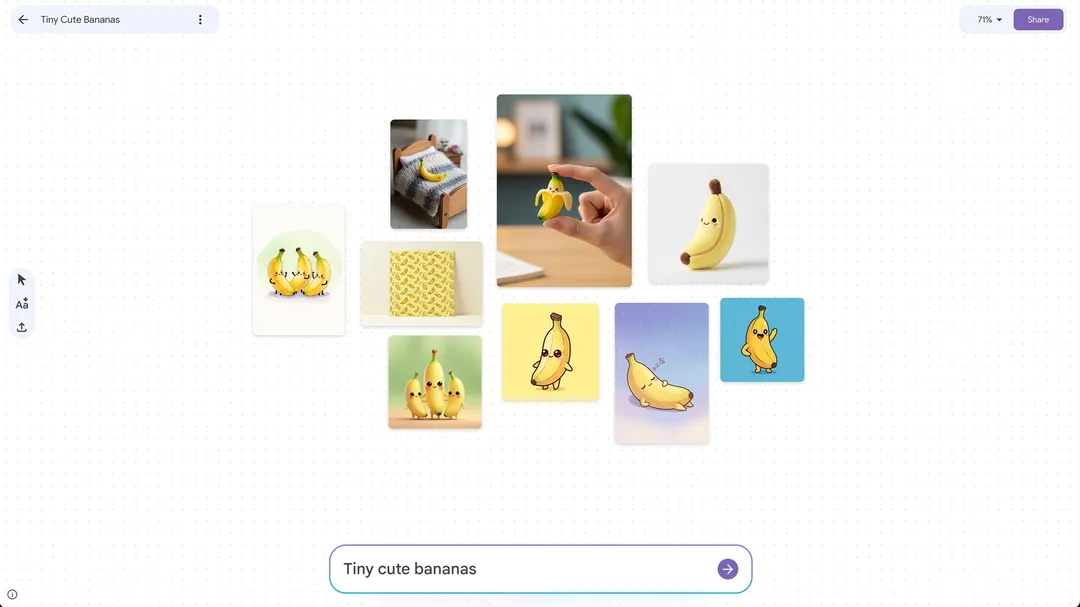
Mixboard is Google Labs' AI infinite canvas: it combines an open whiteboard with image models so you can generate, modify and assemble images from text, and it can turn canvas content into slides, which suits designers, product teams, event planners and content creators doing visual exploration.
Mixboard: The AI Infinite Canvas From Google Labs for Visual Ideation
What is Mixboard
Mixboard is an AI infinite canvas from Google Labs. It pairs a freely expandable digital whiteboard with image generation models: describe what you want in plain language and you can generate, edit and combine images, or drop your own material onto the canvas and recolour it, transfer a style or remove the background.
Beyond standard text-to-image and image-to-image work, Mixboard adds one-click presentation generation: choose a style and focus and the system folds the images, notes and other content on your canvas into a structured slide deck that you can export, turning scattered ideas into something ready to present.
Main capabilities
Infinite canvas and broad format support. An open digital whiteboard for arranging and assembling creative material freely. Besides your own images, extra file formats such as PDF, HEIC and TIFF are supported.
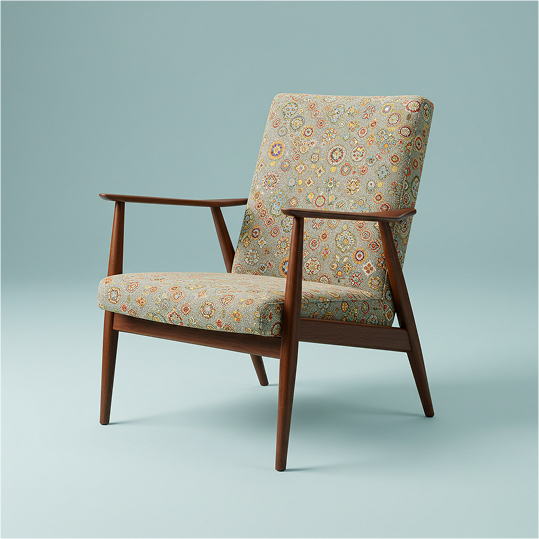
AI generation and intelligent editing. Generate images from a text description or produce stylistically similar variants from an existing picture. You can also modify details with instructions, or use scribble editing: mark an area on the image and describe the idea, and the AI applies the change to that region.
One-click presentation generation. Pick a presentation style and focus and the AI assembles the images, notes and other content from the canvas into a well-structured deck that can be exported.
Projects and multiple boards. A multi-board project view lets you keep several canvases under one project, so brainstorming, reference material and the final proposal stay separate and the workspace stays tidy.
How to use Mixboard
- Sign in: open the official site at https://labs.google.com/mixboard/ and log in with a Google account.
- Choose a canvas: start from a blank canvas or a template.
- Enter a prompt: type a description such as a sunset over the sea to create the first image.
- Upload images: add reference pictures or existing assets as the base or supporting elements.
- Edit and adjust: refine the image with text instructions, for example making the sky bluer or enlarging the trees.
- Create variants: use regenerate or more-like-this to get several creative versions quickly.
- Compose the layout: move and combine elements on the canvas to build a complete visual composition.
- Export and share: export the canvas as an image, generate a presentation, or share your work with others.
Who it is for
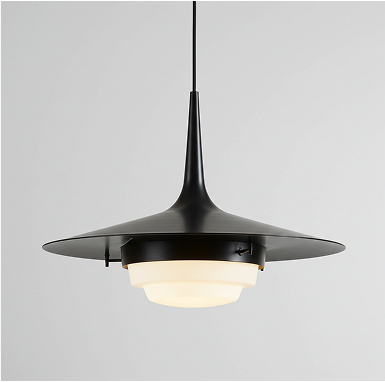
- Interior designers: build visual impressions of a space quickly and compare styles and layouts.
- Product developers: generate concept images and style variants early on to explore directions.
- Event planners: visualise themes and staging and convey the overall mood fast.
- Content creators: produce visual material for social and editorial content.
- Students and educators: help learners express and explore design ideas in art and design courses.
- Creative hobbyists: turn an idea into a visual result without professional design skills.
Limits and things to check
- The tool comes from Google Labs, so features and availability can change as the experiment evolves; treat the official page as the reference.
- Output depends on the quality of your descriptions and source material, and you may need several rounds of adjustment.
- For commercial use, or material with portraits or copyrighted content, confirm the licence and terms first.
- This article does not promise any specific output quality, speed or commercial benefit.
Frequently asked questions
Is Mixboard free?
Public material does not give a single answer; availability and any charges follow the official page, so check it before use.
How does scribble editing work?
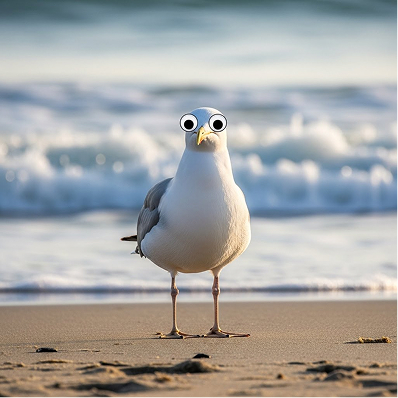
Mark the area you want changed on the image, then describe the result you want in words; the system applies the edit to that region based on both the mark and the description.
Which files can I upload?
Alongside common image formats, official material mentions PDF, HEIC and TIFF support; check the page for what is currently accepted.
Can the generated presentation be exported?
Yes. After choosing a style and focus, the resulting deck can be exported and used directly for a presentation.

Frequently asked questions
Is Mixboard free?
Public material does not give a single answer; availability and any charges follow the official page, so check it before use.
How does scribble editing work?
Mark the area you want changed on the image, then describe the result you want in words; the system applies the edit to that region based on both the mark and the description.
Which files can I upload?
Alongside common image formats, official material mentions PDF, HEIC and TIFF support; check the page for what is currently accepted.
Can the generated presentation be exported?
Yes. After choosing a style and focus, the resulting deck can be exported and used directly for a presentation.