
Quik is an AI video editing app from GoPro: import your footage and it selects the best shots, syncs them to the music and adds transitions to produce a finished video, which you can then refine with colour tools, stickers and text, or convert from 360° to flat video using Reframe.
What Is Quik
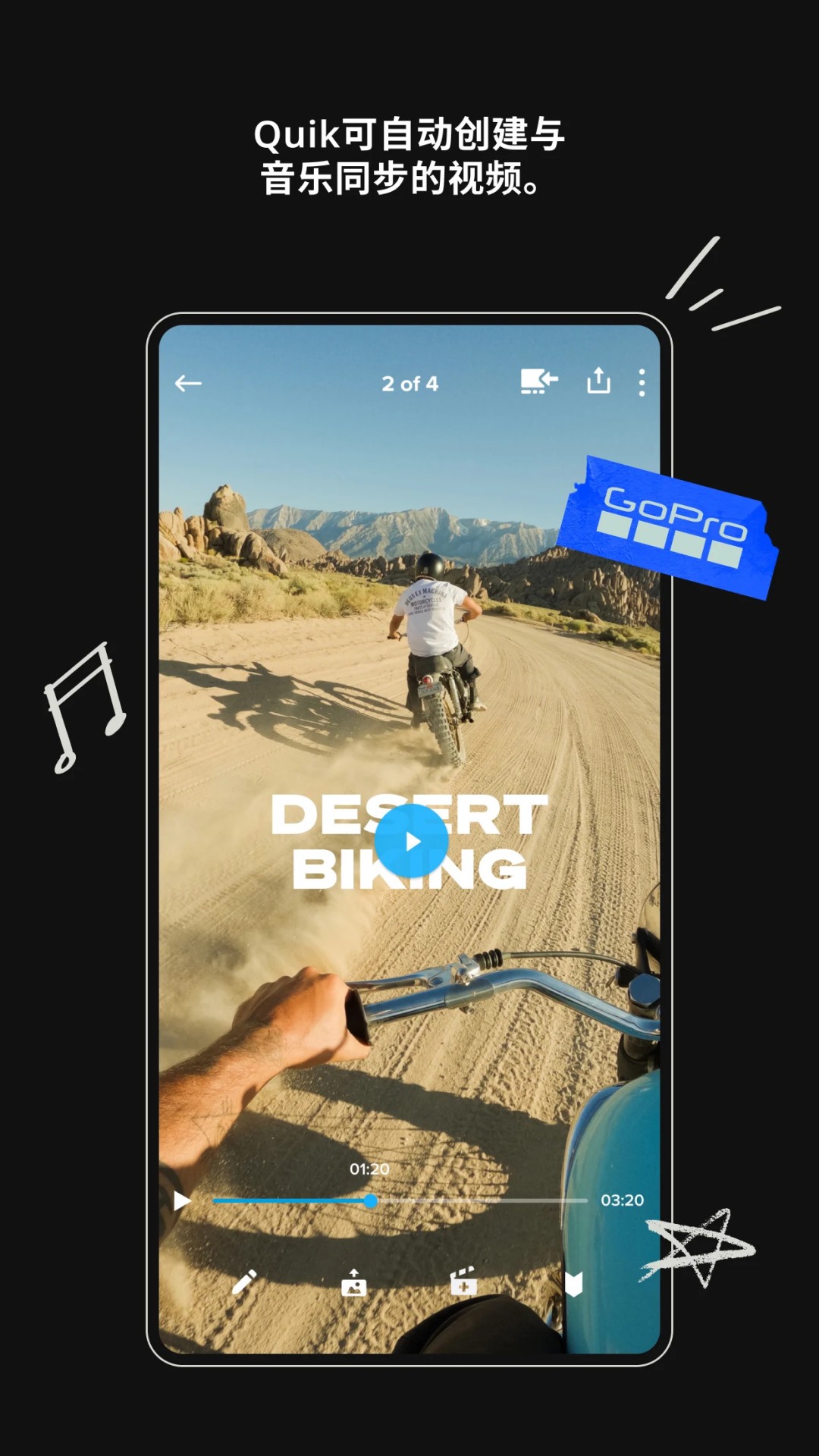
Quik is an AI video editing app from GoPro. It was designed with GoPro camera owners in mind, but it also accepts footage shot on other devices. The underlying idea is "produce the cut first, then let you refine it": once you import your clips, the app picks out the best moments, syncs them to the beat of the music and adds transitions, delivering a shareable video in one pass. From there you keep working on that automatic draft.
For action-camera users this addresses a very concrete problem. A single day of riding, diving or skiing easily leaves you with dozens of clips, and picking and joining them by hand is by far the slowest part of the job. Quik hands that repetitive work to an algorithm; you only confirm the result or swap out the segments you do not like.
Key Capabilities
Automatic highlight videos
The app identifies the best shots in your footage, syncs them with music and applies suitable transitions to produce a shareable video automatically. This is the most basic and most frequently used entry point, and in most cases you get a finished cut without configuring anything.
Music beat sync
Clips, transitions and effects can be aligned to the rhythm of the music so that cuts land on the beat. For beat-driven short videos this is usually the most time-consuming step to do by hand, so automatic syncing shortens production time considerably.
A full set of editing tools
Beyond the automatic draft, Quik provides fairly complete manual control: you can adjust colour and lighting to get the look you want, trim clip length to control pacing and duration precisely, and add a variety of stickers. Automatic and manual modes do not conflict, and in practice people generate the automatic cut first and then refine it.
Text overlay
Adding text and emoji gives the video another narrative layer and makes it more expressive. It works well when you need to label a location, a result or a timeline.
Theme templates
Quik ships a range of theme templates, each with its own cinematic transitions, filters and effects. Picking a theme that suits your story applies a consistent style and mood across the whole video at once, instead of tweaking parameters one by one.
Frame grab
You can capture any frame of a video to obtain a high-resolution still. This is especially useful with action-camera footage, where many great moments were recorded as video and only later need to be pulled out as a single photo.
360° video conversion (Reframe)
For 360° footage, Quik offers Reframe: you can try out many different viewpoints, choose the best shot and create cinematic transitions by tapping keyframes, then export the panoramic source as an ordinary flat video.
Auto-detect and transfer
GoPro owners can connect their camera over a wired USB link; the app detects the connected device automatically and transfers footage quickly, removing the step of importing to a computer first.
Auto upload and cross-device sync
Automatic upload and cross-device sync keep your material safe and let you resume editing from anywhere, which also reduces the risk of losing footage if a device goes missing.
How to Use
- Import footage: connect your GoPro over USB and let the app detect and transfer it, or import videos from other sources straight from the device gallery.
- Generate the automatic cut: wait while the app identifies the best shots, matches the music and adds transitions to produce a first shareable version.
- Choose a theme: pick a style from the built-in templates to apply matching transitions, filters and effects in one go.
- Refine manually: adjust colour and lighting, trim clips, add stickers and text overlays until the pacing and look are right.
- Handle special footage: for 360° clips, use Reframe to select viewpoints and generate keyframe transitions, then export as flat video; when you need a still, use frame grab to pull out a high-resolution photo.
- Export and share: render the final video and share it. Your material stays backed up through automatic upload and sync, so you can keep editing later on another device.
Use Cases
- Sports and outdoor footage: turn dozens of clips from skiing, diving, cycling or trail riding into one tightly paced short film.
- Travel vlogs: unify footage shot across several days and locations with a single theme, cutting out per-clip colour work.
- Social media output: creators who publish vertical or beat-matched clips frequently can rely on automatic sync and themes for a consistent baseline.
- Converting panoramic footage: after shooting with a 360° camera, use Reframe to pick viewpoints and export video that plays normally on ordinary platforms.
- Pulling stills from video: capture standout moments from high-frame-rate or high-resolution footage as single images.
Limitations and Notes
- The confirmed feature descriptions come from the product's public materials; specific menu locations, available templates and the music library may change with updates, so check the current version's documentation before relying on them.
- The source material does not state which platforms are supported, the required system versions, pricing, or whether a free tier exists. Treat official channels as authoritative; this article does not speculate.
- Tracks used by the music sync feature may carry platform or regional restrictions. Confirm licensing before publishing commercially to avoid muted or removed videos.
- Automatic shot selection is an algorithmic judgement and will not always match the story you want to tell. Check important scenes manually and replace segments where needed.
- Automatic upload and cross-device sync mean your footage is stored in the cloud. When recording other people or private settings, get consent first and read up on the relevant privacy and data handling terms.
- Footage converted from 360° to flat video through Reframe usually ends up at a lower resolution than the original panoramic source, so leave yourself headroom for quality-sensitive work.
- Wired USB transfer depends on camera and accessory compatibility, and behaviour may differ between models.
FAQ
Does Quik only work with GoPro footage?
No. It is designed for GoPro users and optimised for auto-detection and USB transfer from GoPro cameras, but it also accepts video from other sources.
Can I edit the automatically generated video?
Yes. The automatic cut is a starting point. You can still adjust colour and lighting, trim clips, add stickers and text overlays, or switch to a different theme template to restyle the whole video.
What is Reframe and what is it for?
Reframe is a feature for 360° video. It lets you try different viewpoints inside panoramic footage, choose the best shot and create cinematic transitions by tapping keyframes, then export the result as a conventional flat video.
Can I extract photos from video?
Yes. The frame grab feature captures any frame as a high-resolution still, which is useful for pulling out moments from action-camera footage.
Is there a free version, and which platforms are supported?
The verified material provides no information on pricing, a free tier, or supported platforms and system versions. This article does not speculate, so please refer to official sources.
Frequently asked questions
Does Quik only work with GoPro footage?
No. It is designed for GoPro users and optimised for auto-detection and USB transfer from GoPro cameras, but it also accepts video from other sources.
Can I edit the automatically generated video?
Yes. The automatic cut is a starting point. You can still adjust colour and lighting, trim clips, add stickers and text overlays, or switch to a different theme template to restyle the whole video.
What is Reframe and what is it for?
Reframe is a feature for 360° video. It lets you try different viewpoints inside panoramic footage, choose the best shot and create cinematic transitions by tapping keyframes, then export the result as a conventional flat video.
Can I extract photos from video?
Yes. The frame grab feature captures any frame as a high-resolution still, which is useful for pulling out moments from action-camera footage.
Is there a free version, and which platforms are supported?
The verified material provides no information on pricing, a free tier, or supported platforms and system versions. This article does not speculate, so please refer to official sources.