TusiArt AI Matting is a smart cutout tool by TusiArt that removes image backgrounds in one click while keeping the subject intact, with background replacement, batch processing, and HD watermark-free export for e-commerce, design, and content creation.
TusiArt AI Matting: Smart Background Removal and Cutout Tool
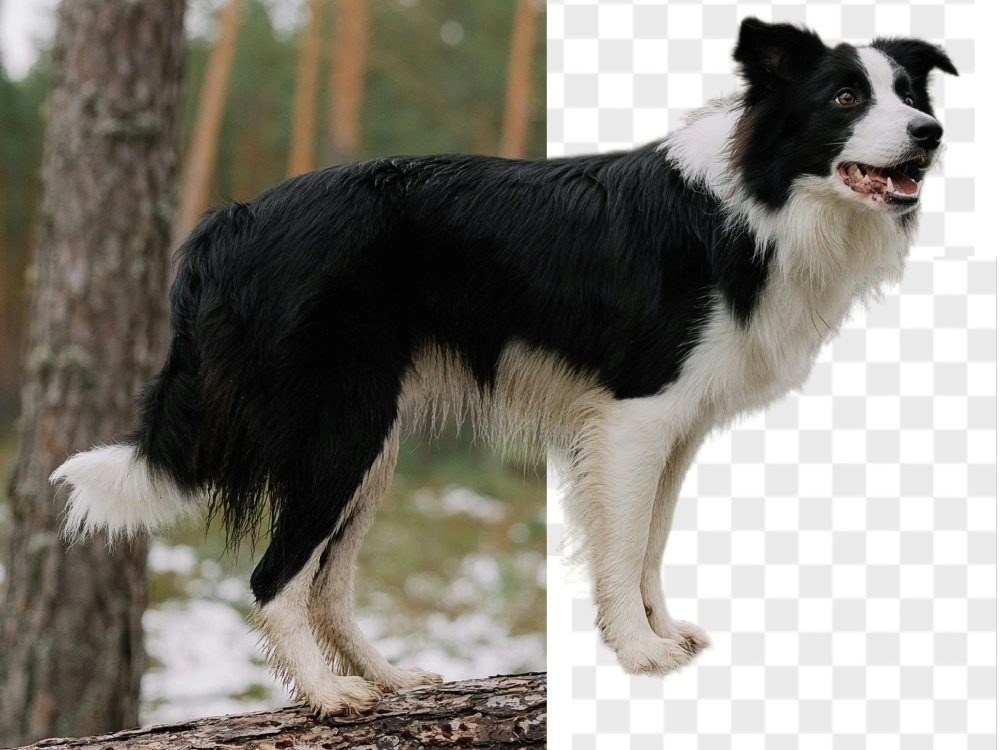
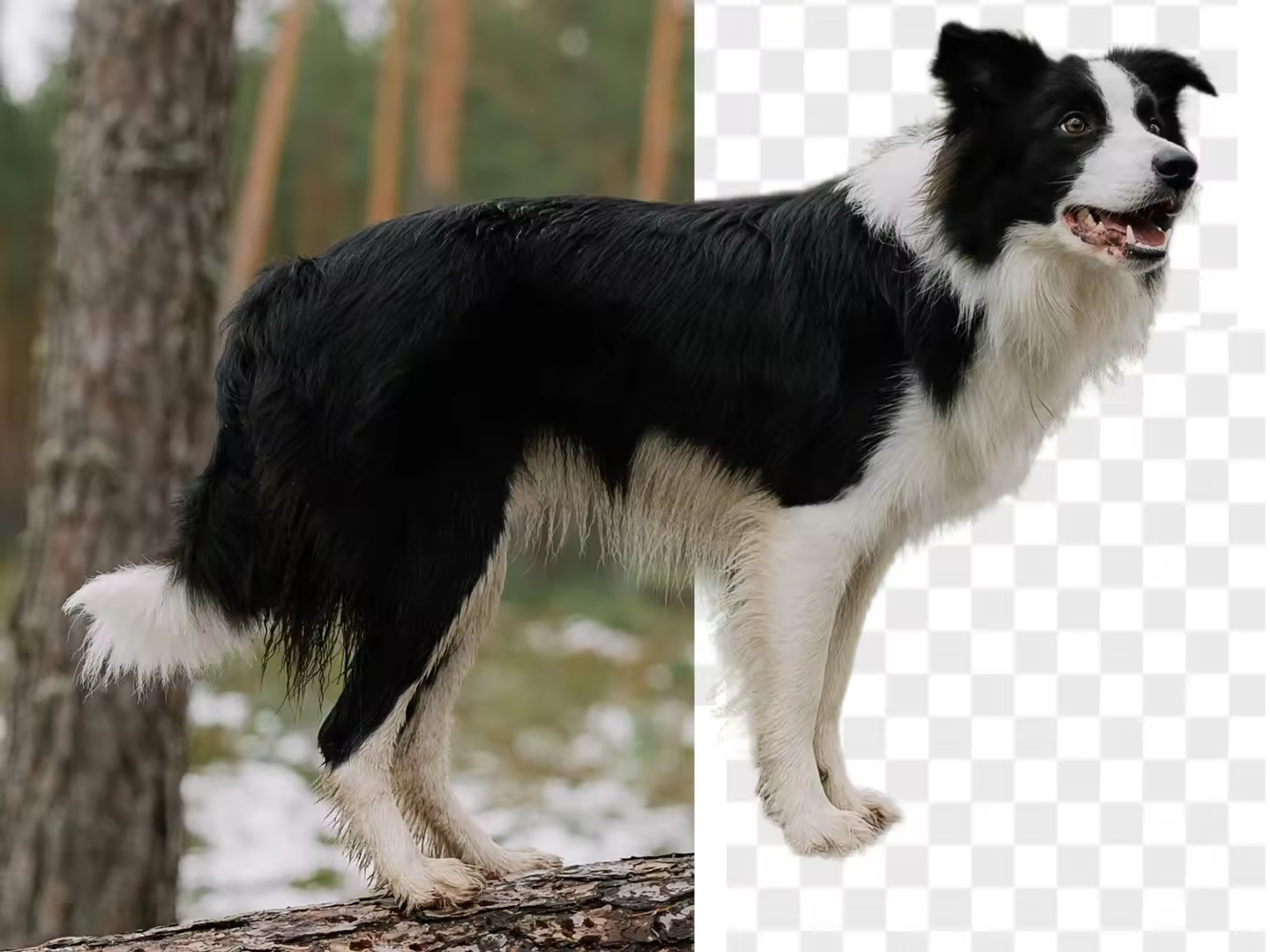
TusiArt AI Matting is a smart cutout tool from TusiArt, built on ComfyUI Workflow, that quickly removes image backgrounds while keeping the subject intact. Just upload an image: the tool automatically identifies and separates the subject from the background and produces a clean transparent-background image. If the result is not ideal, you can retry to refine it. It suits designers, e-commerce sellers, and anyone who needs fast image processing.
Key Features
- Automatic recognition and precise matting: AI automatically identifies the subject and generates a transparent background in one click, with precise edge handling for complex or detail-rich images.
- Batch processing: Upload and process multiple images at once, greatly improving efficiency.
- Background replacement and editing: After removing the background, swap in a new one — pick from the asset library or upload your own.
- Smart erase and repair: Brush over blemishes, unwanted objects, or text and the AI automatically fills in the background.
- Multi-scenario use: Covers product shots, ID photos, social media graphics and more.
- No professional skills required: No need to master Photoshop — simple operations deliver high-quality cutouts.
- HD export, watermark-free: Export lossless high-definition results with no watermark, preserving image quality.
How to Use
- Visit the TusiArt AI Matting page on the TusiArt website and sign in.
- Find the Smart Matting feature in the workspace and open it.
- Click "Upload image" and choose the image to cut out; drag-and-drop is supported.
- The platform automatically identifies the subject and removes the background; re-upload or adjust the image if you are not satisfied.
- If needed, use the brush tool to manually adjust the matting area, or choose a library background or upload a custom one.
- Click "Download" to save the result, or share it to the community.
- For batch jobs, upload several images at once.
Free Quota
A certain number of free credits is granted every day for generating or processing images.
Use Cases
- Art creation: designers can quickly extract subjects for illustrations, oil paintings, watercolors, and other original artworks.
- Advertising and content production: marketers can remove or replace backgrounds in ad images for more appealing visuals.
- E-commerce and product design: quickly remove product-photo backgrounds for transparent listings; designers can also build product design prototypes.
- Social media content: bloggers and creators can quickly generate distinctive images and visuals.
- Game development: extract characters or scene elements quickly for in-game assets and concept design.
Limitations
- Registration and sign-in are required; batch processing consumes free credits.
- Extreme edges (hair, semi-transparent materials) may show imperfections — retry or adjust with the brush tool.
- The daily free quota is limited; heavy workloads may need to wait for the quota to refresh.
FAQ
Who is TusiArt AI Matting for? It suits designers, e-commerce sellers, content creators, social media bloggers, and general users who need fast background removal — especially product shots, ID photos, and social graphics.
What if the cutout result is not ideal? Re-upload or adjust the image, use the brush tool to mark parts to keep or remove, or try a different background to emphasize the subject.
Does TusiArt AI Matting support batch processing? Yes. Upload multiple images to cut out in a batch — ideal for standardized processing of large sets of product photos or assets, greatly improving efficiency.
Frequently asked questions
Who is TusiArt AI Matting for?
It suits designers, e-commerce sellers, content creators, social media bloggers, and general users who need fast background removal — especially product shots, ID photos, and social graphics.
What if the cutout result is not ideal?
Re-upload or adjust the image, use the brush tool to mark parts to keep or remove, or try a different background to emphasize the subject.
Does TusiArt AI Matting support batch processing?
Yes. Upload multiple images to cut out in a batch — ideal for standardized processing of large sets of product photos or assets, greatly improving efficiency.